Workbook & Layout
Workbooks and worksheets allow the user to better organize the data visualization into the software. A layout allows you to save the configuration of the workbooks and worksheets currently on screen so it can be reloaded in the future or shared with other users. Workbooks and layouts are controlled from the Workbook tab of the ribbon bar

Workbook
After clicking the Add Workbook button a new blank workbook will appear. It can be seen as a new instance of HH Data Management but connected to the same database. It is usually used to organize your layout on multi-monitor.
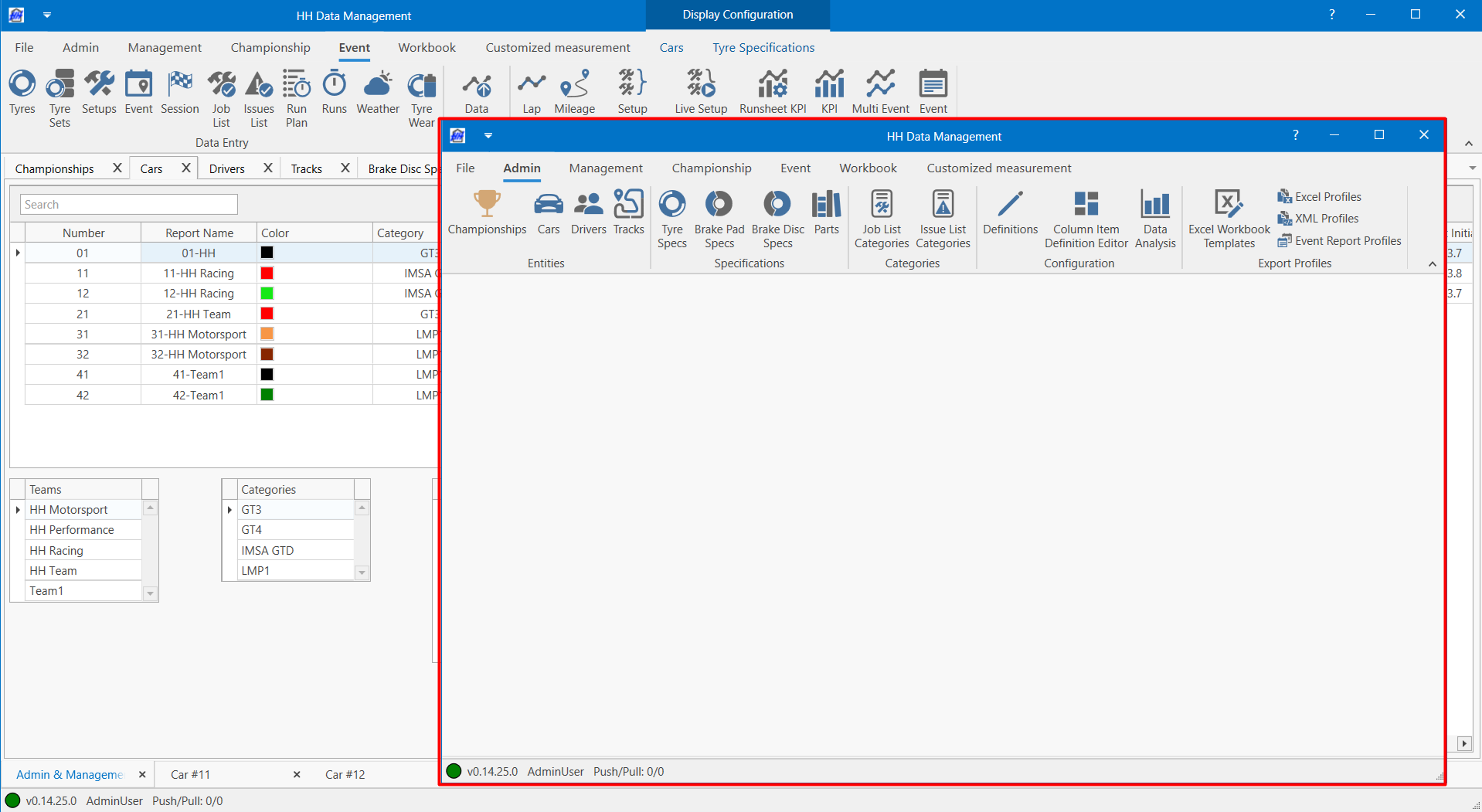
A workbook can be saved using the Save Current Workbook button which will create a .dmwb file. Workbooks can be loaded into a current layout by using the Load Workbook button.
Worksheet
After clicking the Add Worksheet button a new blank worksheet will appear with a tab at the bottom of the software.
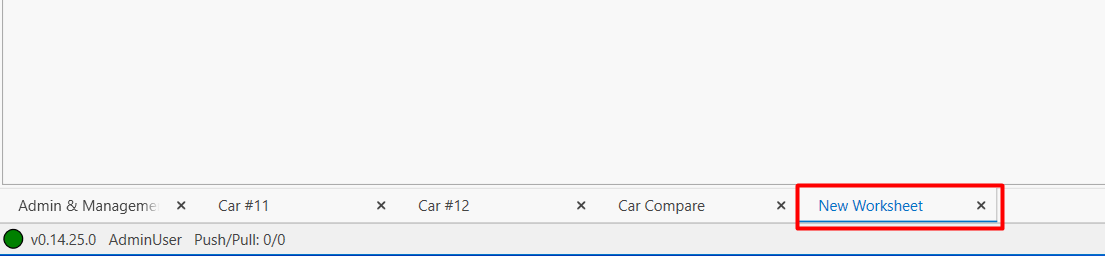
Double click on the name to edit the worksheet name.

Worksheets can be reordered by dragging them left or right.
Worksheets can be duplicated and the background and foreground colours of the tabs can be edited by right clicking on the tab.


A worksheet can be saved using the Save Current Worksheet button which will create a .dmws file. Worksheets can be loaded into a current layout by using the Load Worksheet button.
- Saving and loading workbooks and worksheets separately from layout can be useful to share between different users. For example, we user could be working on some KPIs visualization page that he could share to his teammates without having to share his entire layout.
- Using worksheet coloring and icons in the name can help to personalize the layout and help with navigation. Here is an example:

Layout
A layout contains all your workbooks and worksheets. It can be saved as a file and loaded so it can be restored at any time.
HH Data Management automatically saves the state of your layout every five minutes to an "Autosaved Layouts" folder that can be restored from should you ever forget to save your layout. This folder can be found by going to the Support tab and clicking "Open layout backups location".
To save a new layout, click on Workbook and then Save Layout. The Save Layout As button can be used to save the current layout in a different file. The layout is saved as a .dmlay file.
Backstage
The backstage is accessed by clicking File in the top left of HH Data Management:

Project
Options
Support
The support tab has four buttons that will help to carry out certain tasks if needed for support purposes.
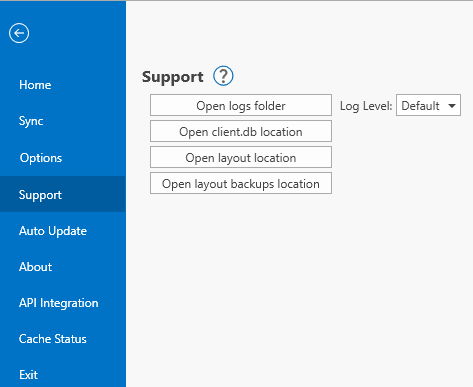
Adjust the log level only upon instruction from the HH Development team. Any log level changes will remain effective only for the current session, i.e. after restarting HH Data Management, the log level will revert to the default setting.
About
The about tab contains some basic information about the current software version and what plugins are installed.