Network
The Network group of the Data ribbon page connects HH Timing to a live timing feed.

Connect
Starts every connection of the active connection profile. While connected, the incoming data is recorded in the project as a new session.
Disconnect
Stops the connections of the active connection profile. The recorded data stays in the project and can be loaded or replayed later from Session Data.
Connection Profiles
A connection profile holds the settings of one timing feed: the protocol (for example Al Kamel V2, Natsoft XML, Swiss Timing Kafka or TSL Timing), the login and server details of the timekeeper, and protocol specific options such as micro sectors. Profiles are saved in the project. Open them with Connection Profiles in the Network group of the Data ribbon page, or by clicking the connection profile name in the status bar.
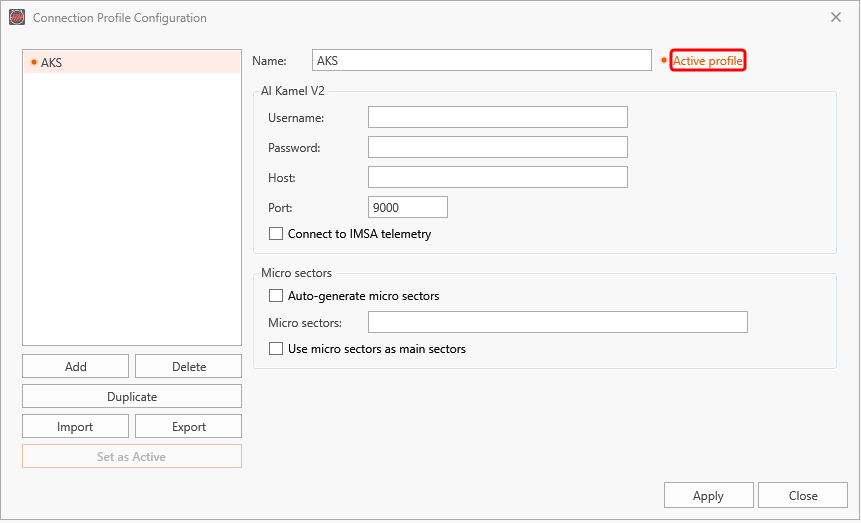
HH Timing V2 connects with the active connection profile. Only one profile is active at a time; connecting and importing data use it.
- Add creates a profile; choose its Type first. The first profile you create becomes active straight away.
- Duplicate, Import and Export copy a profile, for example to share it with a colleague.
- Apply and Activate or Set as Active makes the selected profile the active one.
- Apply saves the changes.
While a connection is running:
- the active connection profile cannot be edited, and This profile is in use. Stop all connections to edit it. is shown;
- no other profile can be made active.
Stop all connections first, then make your changes.
See Profiles for how profiles, the active profile and the status bar work, and Timekeeper specific info for the settings of each protocol, and Getting Started for an example.
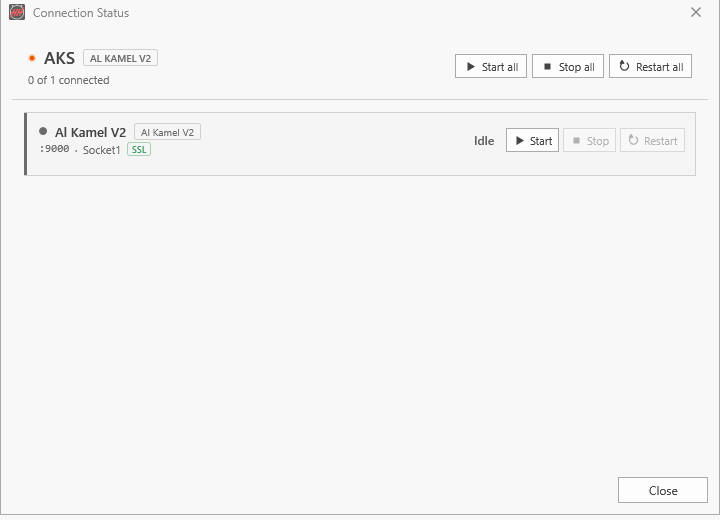
Connection Status
Shows the connections of the active profile and their state. Start, Stop and Restart control a single connection; Start all, Stop all and Restart all control all of them.