Initial Data Import
Once the software is installed and launched the next step is to load some data and open displays. This page will give some quick steps to get started with this.
This tutorial loads a recorded race into HH Timing V2, so you can try the displays without a live timing feed. It uses the 2026 FIA WEC 6 Hours of Imola race from the replay repository.
1. Create a connection profile
A connection profile tells HH Timing which timing protocol to read. Imported data is read with the active profile, so a profile matching the timekeeper of the event is needed. FIA WEC timing comes from Al Kamel.
On the Data ribbon page, click Connection Profiles.

Click Add, choose Al Kamel V2 as the Type and give the profile a name. Username, password and host are only needed for a live connection and can stay empty for imported data. Click Set as Active, then Apply. The active profile is marked with an orange dot and Active profile.
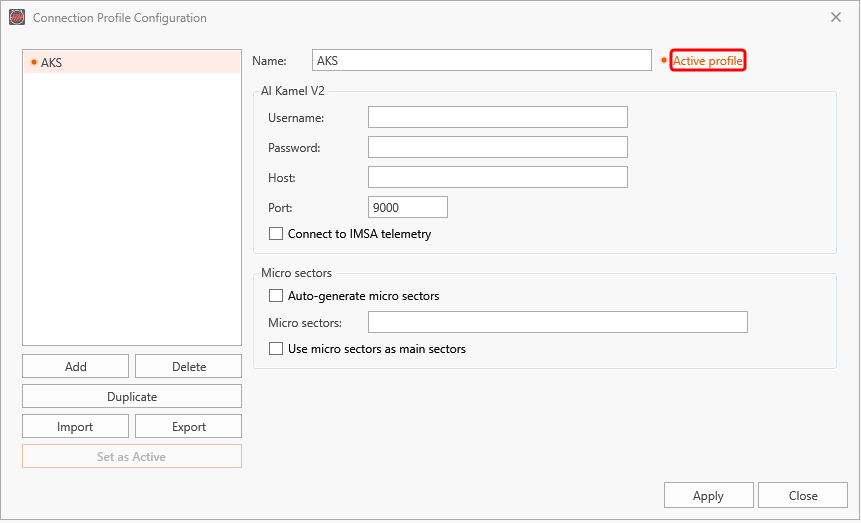
2. Import a race from the replay repository
On the Data ribbon page, click Remote Import. Select the series, year, event and session, here WEC, 2026, 6 Hours of Imola and RACE, and click Load Replay.
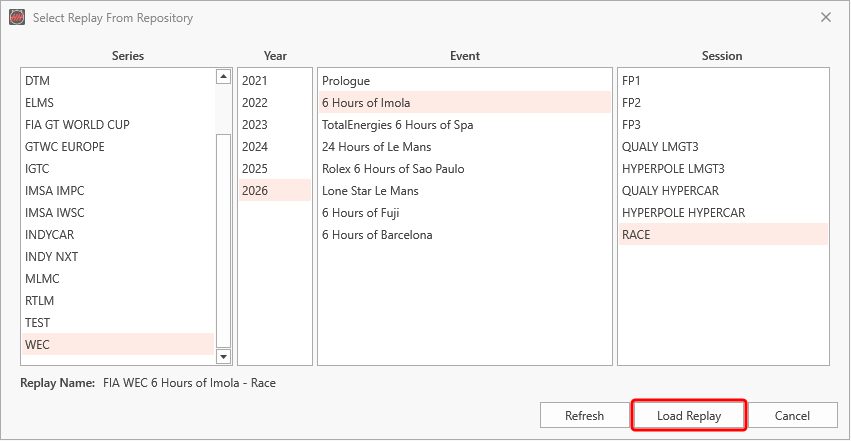
HH Timing downloads the replay and imports it into the project. If the replay needs another timing protocol than the active profile, the dialog says so; create and activate a profile of that protocol first.
If you want to connect to a live session, at this point you could also click Connect on the ribbon bar. In this case you would need to make sure all relevant info was entered in the active connection profile.
3. Load the session
On the Data ribbon page, click Manage. Tick the imported session and click Load.
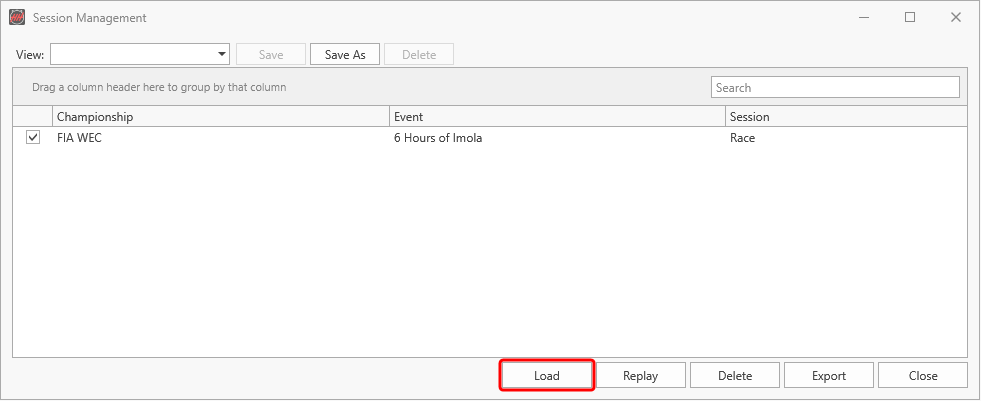
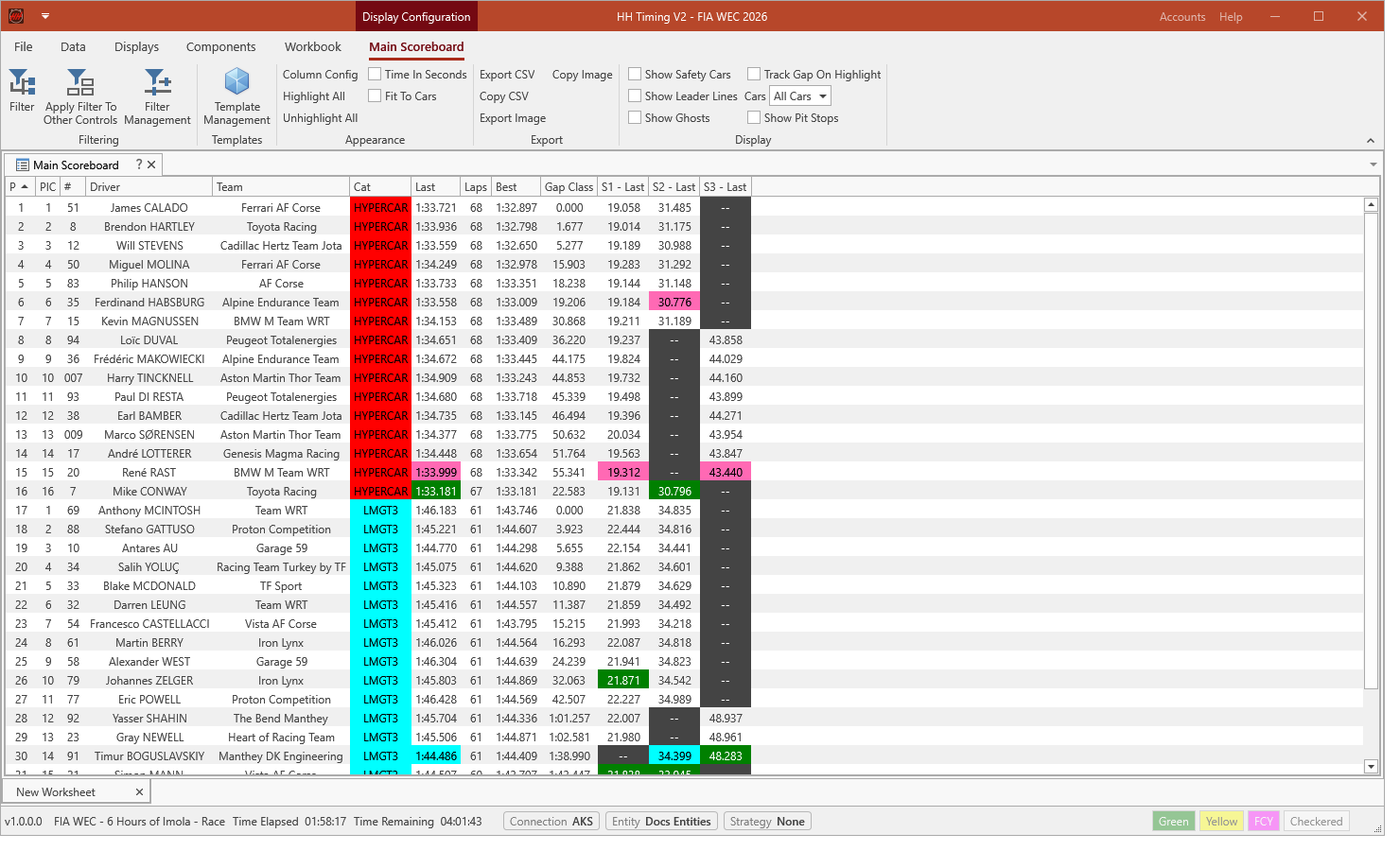
The status bar now shows the loaded session, and every display shows its data.
4. Open a display
Open any display from the Displays ribbon page, for example the Main scoreboard.