Replicate the V1 Live Crossing Order
HH Timing V2 has no separate Live Crossing Order display. The Main Scoreboard shows the same information instead. This page explains how to set it up so it looks and behaves like the V1 Live Crossing Order.
As a reminder, this is the V1 display:
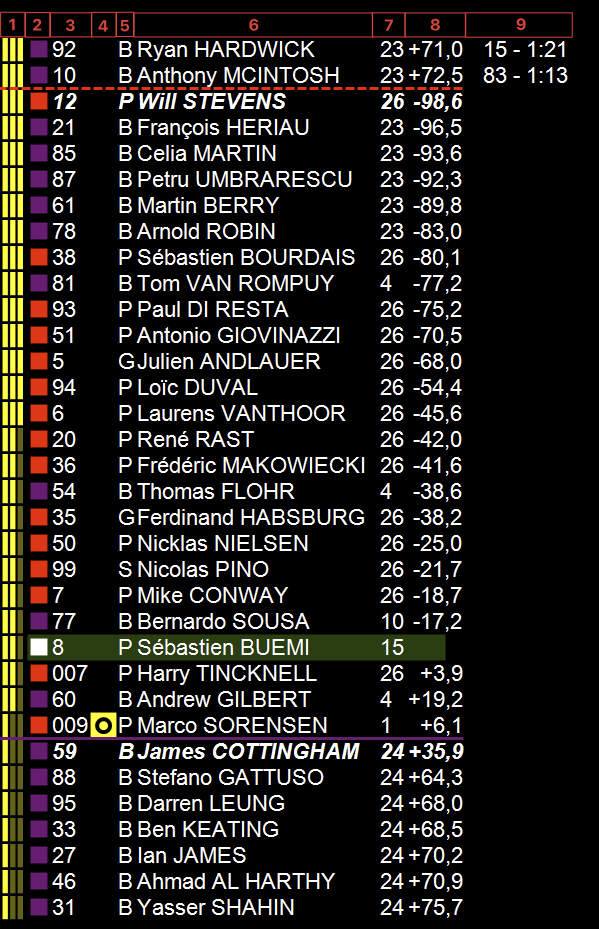
Use the default template
The quickest way is the Live Crossing Order default template. In the Displays ribbon page, open the arrow of the Main button in the Scoreboard group and pick Live Crossing Order. It opens a Main Scoreboard with the main columns of step 2, sorted on Track Order (Leader), with Show Leader Lines, Show Safety Cars and Track Gap On Highlight ticked. You still choose your reference cars (step 5) and, if you use them, tick Show Ghosts (step 6).
To set it up yourself, follow these steps.
1. Add a Main Scoreboard
Add a Main Scoreboard to your workbook. All the settings below are saved with the workbook layout, so you only need to do this once.
2. Choose the columns
Open the Column Config and show these columns, in this order. Hide the others.
| V1 element | V2 column |
|---|---|
| Green bar showing the current sector | Sector |
| Class icon, square on the lead lap | Lead Lap |
| Car number | # |
| Out lap indicator | Status |
| Current driver | Driver |
| Current stint lap number | # Laps Stint Current |
| On-track gap to the reference car | Track Gap #, see step 5 |
| Time in the pit lane | Time In Pits |
| Crossing order, leader at the top | Track Order (Leader) |
| Crossing order, next car at the top | Track Order |
The two Track Order columns are needed for sorting. You can make them narrow or move them to the end.
3. Pick the mode
V1 had two modes. In V2 you choose the mode by sorting on one of the Track Order columns.
- Leader at the top: sort on Track Order (Leader). The overall leader is 1, followed by the cars in the order they will cross the finish line.
- Next car at the top: sort on Track Order. The car that will cross the finish line next is at the top and moves to the bottom once it has crossed.
Cars in the pits or stopped have no track order and are always at the bottom, like in V1.
The order is calculated over the cars that pass the filter. With a class filter, the class leader is 1.
4. Turn on the leader lines
In the Display group of the ribbon, tick Show Leader Lines. As in V1, a dotted line is drawn above the overall leader and a solid line in the class colour above each class leader.
5. Set the reference car
In V1 the reference car was typed in the ribbon. In V2 you highlight it.
- In the Display group of the ribbon, tick Track Gap On Highlight.
- Double-click the row of your car to highlight it. A Track Gap column is added for it, for example Track Gap 97.
- Double-click another row to add a second reference car. Each reference car has its own column.
Double-click a highlighted row again, or use Unhighlight All, to remove its column. Highlight All does not create reference cars.
The Track Gap column follows the sort. Sorted on Track Order, the cars above the reference car are ahead of it on track. Sorted on Track Order (Leader), the gap is taken around the leader, like in V1.
Each reference car also has a Gap Ahead # and a Gap Behind # column. They are hidden by default and can be shown in the Column Config. Your column choices are kept for each reference car.
The gap is empty while a car is in the pits, and until it crosses a timing line after leaving the pits.
6. Add the pit stop ghosts
The V1 F and F+T rows are replaced by ghost cars, defined in the Ghosts tab of the Strategy Parameters.
- Add a ghost rule for each type of stop, for example F and F+T.
- Set Offset to the time lost in the pits for that stop, in seconds.
- Set Multiplier to 0. A multiplier above 0 adds time for each lap of the current stint.
- Under Assignments, assign the rules to your car.
- In the Display group of the scoreboard ribbon, tick Show Ghosts.
Each ghost row is shown in italics, in the colour of its car. It sits in the track order where the car would be if it pitted now. A ghost is hidden while its car is in the pits, or when its car does not pass the filter.
Differences with V1
- Ghost gaps: V1 showed the gap from a ghost to the cars just ahead and behind. In V2, a ghost row shows its gap to each reference car in the Track Gap columns.
- Driver categorisation: V2 has no driver categorisation column yet.
- Safety car: with Show Safety Cars ticked, each deployed safety car gets a row. With Track Order (Leader), the order then starts at the safety car instead of the leader.