Le Mans 24 Hours
Connection Options
Alkamel is proposing 2 different ways to connect to their feed:
- On-site
- On-cloud.
If HH Timing Will Not Connect to Feed
If you can not successfully connect to the feed there are two likely causes:
- Your computer can not access the timing server. This will likely be caused by an issue with your team network. If you can not "ping" the IP address of the timing server this means your computer can not access the timing data.
- You have exceeded the number of connections allowed by Al Kamel
If you can not successfully connect to the feed and get the message in the lower-left corner of the software " Max Number of Connections Reached" this indicates you have exceeded the number of connections allocated to you from Al Kamel.
For Le Mans, Al Kamel gives each team four local timing connection per car, although you can pay extra for more. If you are getting the Max Number of Connections Reached message and you believe you are not exceeding your connection limit it is best to speak to Al Kamel in person. You can generally find them in the timing and scoring office which is at the pit-in end of the main pit lane building.
Timing Feed Protocol - Al Kamel V2
The Al Kamel V2 protocol is the Al Kamel JSON protocol. The main advantage of the V2 protocol from the user’s perspective is the inclusion of GPS position data in the feed. This allows the following extra features:
- The position of the cars on the Track Map can be defined by their GPS coordinates
- The path (driving lines/position) of cars can be compared
- The speed traces of cars are calculated from the position data and can be plotted.
More details about the connection to this protocol and its specificities can be found in the Alkamel V2 section.
GPS Track Map
The GPS mode for track maps is explained here.
Additionnal loops
In Le Mans there are a number of additional “timing loops” that are accessible by teams. Al Kamel supply the timing data from these additional timing loops in the regular data feed but in a different way, which means these loops aren't handled like "regular" loops are.
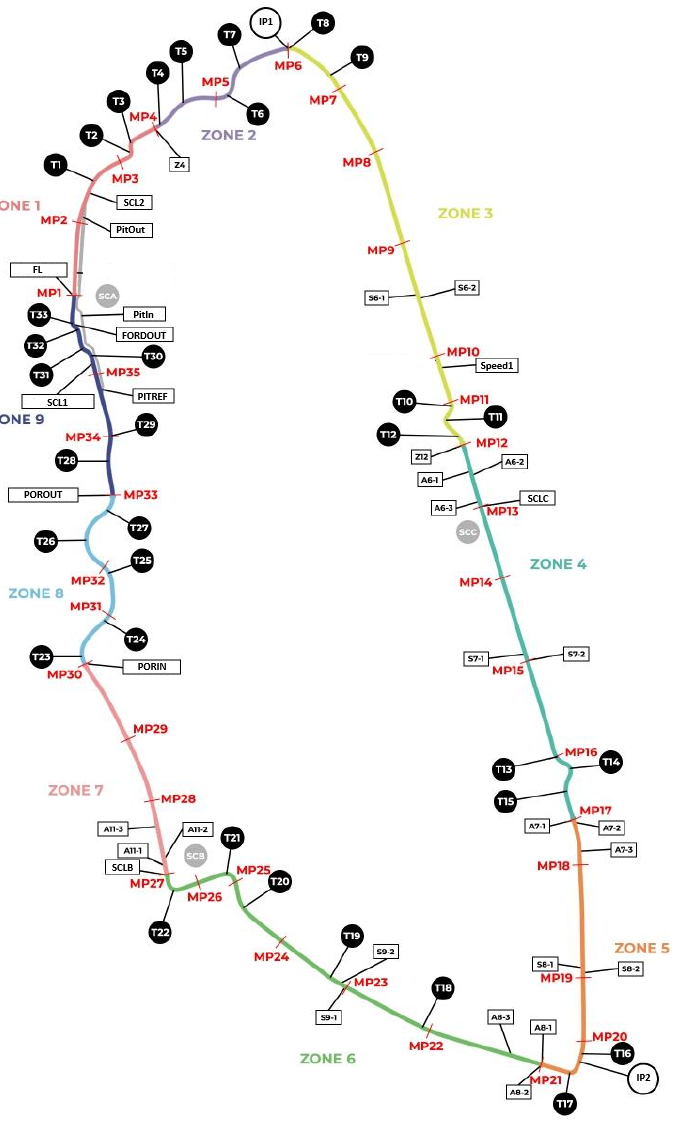
By default, HH Timing does not show all the data from the additional loops, the user can define their own custom sectors using the timing loops from x2 channel (not available in support series), using the following names:
| Loop Name | x2 Channels | Slow Zone |
|---|---|---|
| FL | end of SZ9/ start of SZ1 | |
| SCL2 | SZ1 | |
| Z4 | end of SZ1/ start of SZ2 | |
| IP1 | end of SZ2 / start of SZ3 | |
| S6-1 | ☑️ | SZ3 |
| S6-2 | ☑️ | SZ3 |
| Speed1 | SZ3 | |
| Z12 | end of SZ3 / start of SZ4 | |
| A6-1 | ☑️ | SZ4 |
| A6-2 | ☑️ | SZ4 |
| A6-3 | ☑️ | SZ4 |
| SCLC | SZ4 | |
| S7-1 | ☑️ | SZ4 |
| S7-2 | ☑️ | SZ4 |
| A7-1 | end of SZ4 / start of SZ5 | |
| A7-2 | ☑️ | SZ5 |
| A7-3 | ☑️ | SZ5 |
| S8-1 | ☑️ | SZ5 |
| S8-2 | ☑️ | SZ5 |
| IP2 | SZ5 | |
| A8-1 | end of SZ5 / start of SZ6 | |
| A8-2 | ☑️ | SZ6 |
| A8-3 | ☑️ | SZ6 |
| S9-1 | ☑️ | SZ6 |
| S9-2 | ☑️ | SZ6 |
| SCLB | end of SZ6 / start of SZ7 | |
| A11-1 | ☑️ | SZ7 |
| A11-2 | ☑️ | SZ7 |
| A11-3 | ☑️ | SZ7 |
| PORIN | end of SZ7 / start of SZ8 | |
| POROUT | end of SZ8 / start of SZ9 | |
| PITREF | ☑️ | SZ9 |
| SCL1 | SZ9 | |
| FORDOUT | SZ9 | |
| PitIn | ||
| PitOut |
Micro Sectors / Slow Zones
Auto-Generated Micro Sectors
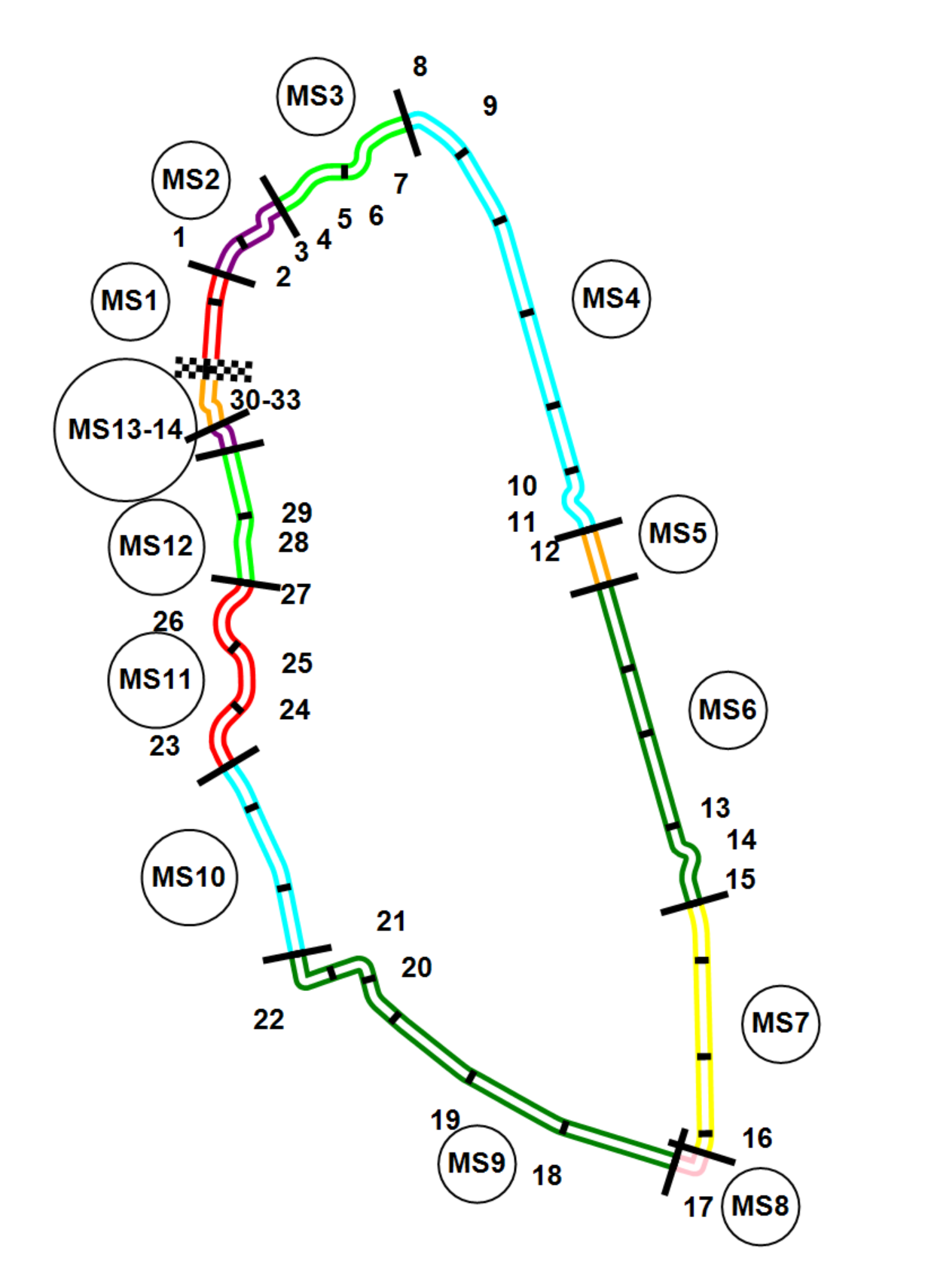
Since the start of the 2026 season, the option Micro Sectors can be set to auto-generated. All available timing loops from the live feed (ordered by their index as provided by Al Kamel) are used to automatically create consecutive micro sectors MS1, MS2, ...
For Le Mans, this will create 14 sectors.
| Name | Value |
|---|---|
| Use Micro Sectors As Main Sectors | true |
| Micro Sectors | auto-generated |
In this configuration, the LeMans_micro map must be used.
Le Mans: FL,SCL2,Z4,IP1,Z12,SCLC,A7-1,IP2,A8-1,SCLB,PORIN,POROUT,SCL1,FORDOUT
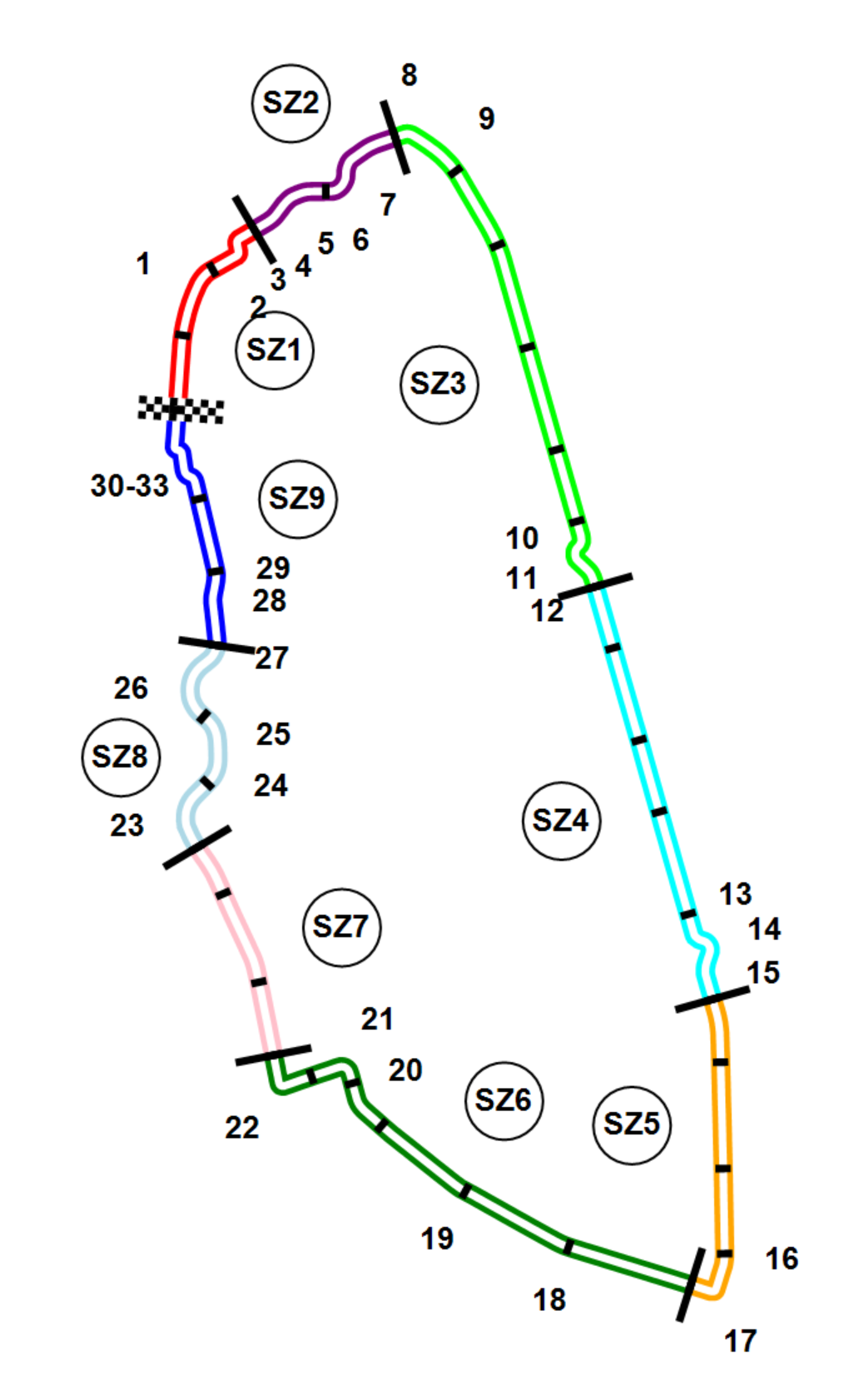
Using Slow Zones as main Sectors
The Slow Zones can still be created as Micro Sectors in Le Mans using the timing lines from the feed:
- FL to Z4
- Z4 to IP1
- IP1 to Z12
- Z12 to A7-1
- A7-1 to A8-1
- A8-1 to SCLB
- SCLB to PORIN
- PORIN to POROUT
- POROUT to FL
The micro sector string would be: SZ1,FL,Z4;SZ2,Z4,IP1;SZ3,IP1,Z12;SZ4,Z12,A7-1;SZ5,A7-1,A8-1;SZ6,A8-1,SCLB;SZ7,SCLB,PORIN;SZ8,PORIN,POROUT;SZ9,POROUT,FL
The option "Use Micro Sectors As Main Sectors" should be set to true to utilize them.
| Name | Value |
|---|---|
| Micro Sectors | SZ1,FL,Z4;SZ2,Z4,IP1;SZ3,IP1,Z12;SZ4,Z12,A7-1;SZ5,A7-1,A8-1;SZ6,A8-1,SCLB;SZ7,SCLB,PORIN;SZ8,PORIN,POROUT;SZ9,POROUT,FL |
| Use Micro Sectors As Main Sectors | true |
In this case, use the LeMans_9SZ track map.
Pre-configured Championship Configurations for Download
We have prepared pre-configured championship configurations for each of these options, for both local and cloud connections, that you can download and import directly into HH Timing. These can be downloaded below:
To import a championship into your project, use the Import button in the Components tab.

Create Custom Sectors
With the additional loops, the user can define custom sectors in the “Additional Options” grid of the Championship Configuration. More details can found in this section.
Speed Traps for Custom Sectors
HH Timing can create speed traps for any of the custom sectors that are defined in the championship configuration. More details can be found in this section.
Suggested Race Settings
Options considered critical for the software to operate as intended during the race are summarized below.
Session Settings in Backstage Options

Track Map Options
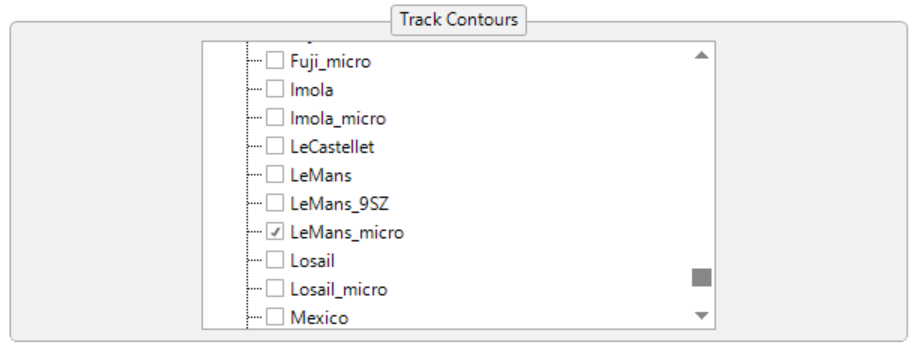
Select Le Mans track contour
Define the max number of laps for your class of interest. See the Track Item section for a detailed explanation of how these values are applied.

Define the average lap time in seconds of the cars/classes of interest. This is optional and only needs to be used is you prefer to have control over this, otherwise the software will use the average of the best 3 laps in the last 5 for each car as the lap time for forward projections.
Championship Options
Check these are correct:
- Host
- Port
- Championship Filter
- Tyres and Fuel in parallel
Car Following/Highlighting
See the track map highlighting section to make sure everything set to your preferences.
Miscellaneous Notes
The way HH Timing defines if a lap was under caution/slow zone/SC
- Each of the three safety cars has a number that is locked to it, either 1,2 or 3. This can be thought of in the same way as any other car number, the number is associated with the transponder physically fitted to the car.
- Please review how the championship filter is intended to be used if you are unfamiliar with it and make sure it is set correctly to avoid issues with data being blocked or support race data being included in your project.
- There can be cases when a slow zone is removed and the track goes green, however the message is not sent by the time keepers. In this case, there is no way for the software to know that the slow zone has ended. In this case the user can force the track status back to green using the green flag symbol in the lower right corner of the window.
- If you need to restart HH Timing during a session and especially during the race, there are 2 options to get back your old data:
You did not miss a pitstop for your car during the connection loss
Right-click on the session and use "Recover"
Wait to get back your old data.
Make sure the Read History option is set to false in your championship config
Connect again without clearing the scoreboard.

Your car did a pitstop during the connection loss
Make sure the Read History option is set to true in your championship config
Save your layout
Close all your controls.

Connect again clearing the scoreboard.
Wait session the Elapsed time to be live.
Open your layout.
Support
If you need any support please send messages to support@hh-dev.com as this is the fastest way for one of us to provide help.