IGTC
In the Intercontinental GT Challenge, timing stream and rules are specific to each event. Those rules could change heavily from event to event so it is important to make sure to check back on this page for every event.
Bathurst 12 Hours
Past year replays
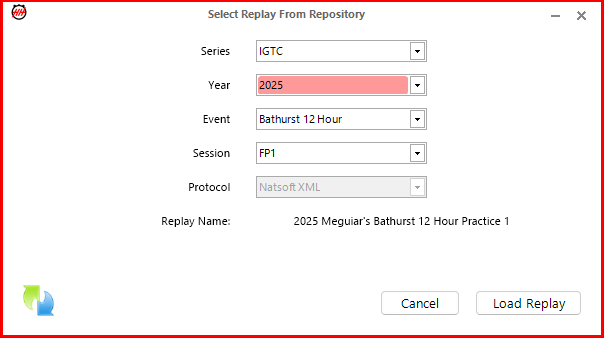
The replays are available on our remote replay database
Pit lane network
WIFI in the garages do NOT have the timing feed on it.
Timing feed (with internet) is available on the left most connection in the garages. Connecting to timing (with internet)requires the following static addresses:
IP address
10.0. <GarageNumber>.<Port Number>
Laptops or routers should be set as follows under IPV4 Properties:
| IP address | as above |
| Subnet Mask | 255.255.0.0 |
| Primary Gateway | 10.0.101.1 |
| Backup Gateway | 10.0.101.2 |
| DNS Servers | 8.8.8.8 and 8.8.4.4 |
The technical contact for the team's network is Dan Beattie (+61 (0)418171615)).
Championship configuration
Championship protocol
| Protocol | Natsoft XML |
| Host | 192.168.4.1 |
| Port | 8889 |


Track Map
The track map for Bathurst can be found in the folder IGTC --> Bathurst. There is the regular one if the 3 sectors are used or the Bathurst_micro if the micro sectors are set as main.

Micro-sectors
The use of micro-sectors is optional. To be used they need to be entered in pairs as a semicolon/comma separated list.
Here is how they should be entered for Bathurst :
| Track | Micro-sectors |
|---|---|
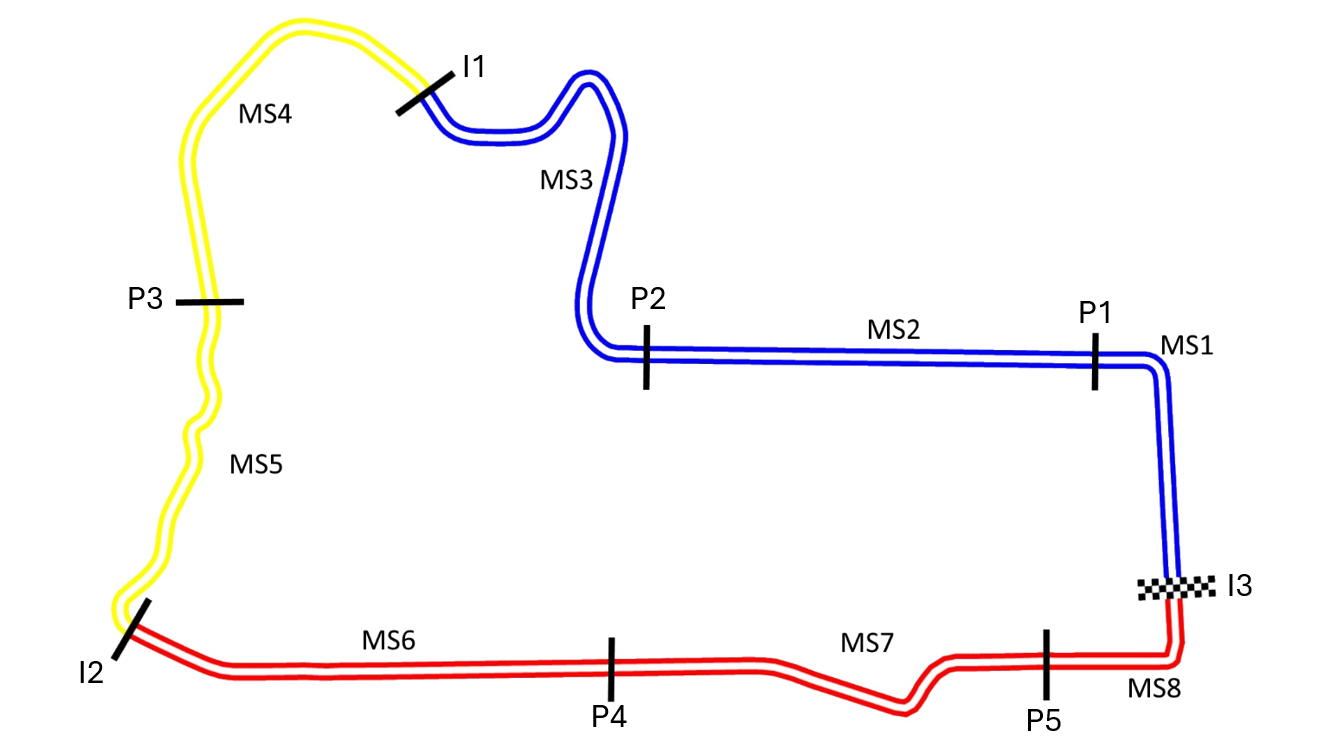
| Bathurst | I3,P1;P1,P2;P2,I1;I1,P3;P3,I2;I2,P4;P4,P5;P5,I3 |
The micro-sectors can be defined in the championship configuration:

Here is the track map for the 8 micro-sectors:
Micro-sectors are available in the software in:
- Main scoreboard
- Best sector scoreboard
- Car Scoreboard
- Graphing
- If
Use Micro Sectors As Main Sectorsis set to true:- Standard sectors
S1toS8will correspond to your new main sectors soMS1toMS8.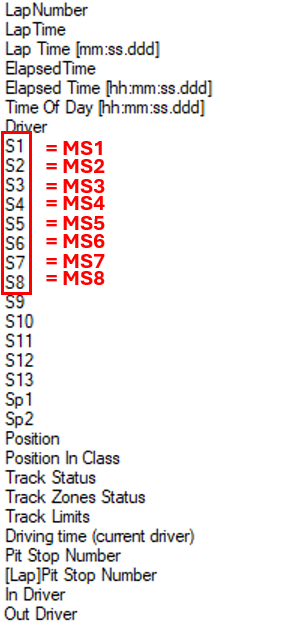
- It is required to define the Number of Non-Track Sectors in the backstage option (e.g.,
3). After defining this option, HH timing must be restarted for the change to take effect: 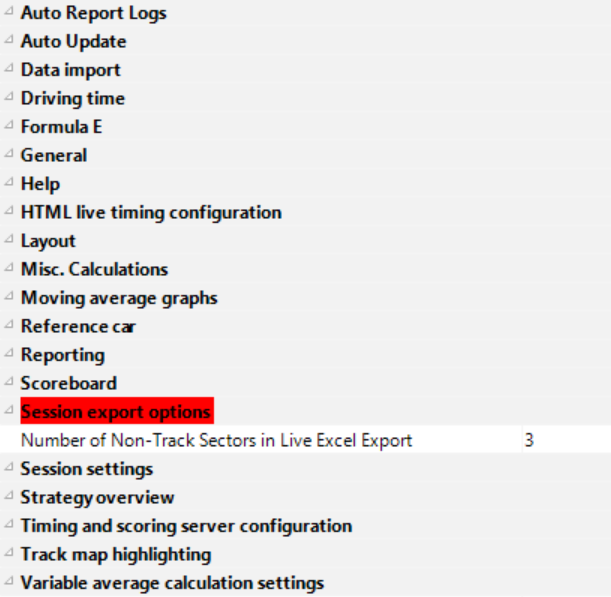
- Then,
NTS1toNTS3will correspond to the originalS1toS3. 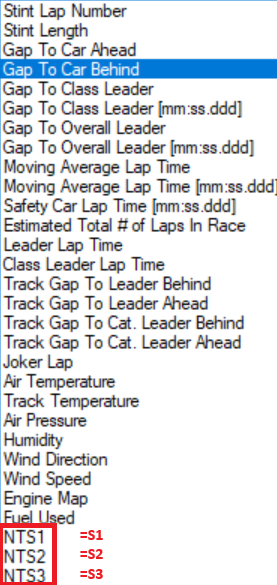
- Then,
- Standard sectors
- If
Use Micro Sectors As Main Sectorsis not set or set to false:- Standard sectors remain named
S1toS3. - All non-track sectors, including slow zones, will appear as
NTSentries (e.g.,NTS1,NTS2, ...).
- Standard sectors remain named
Suggested Race Settings
Backstage Options
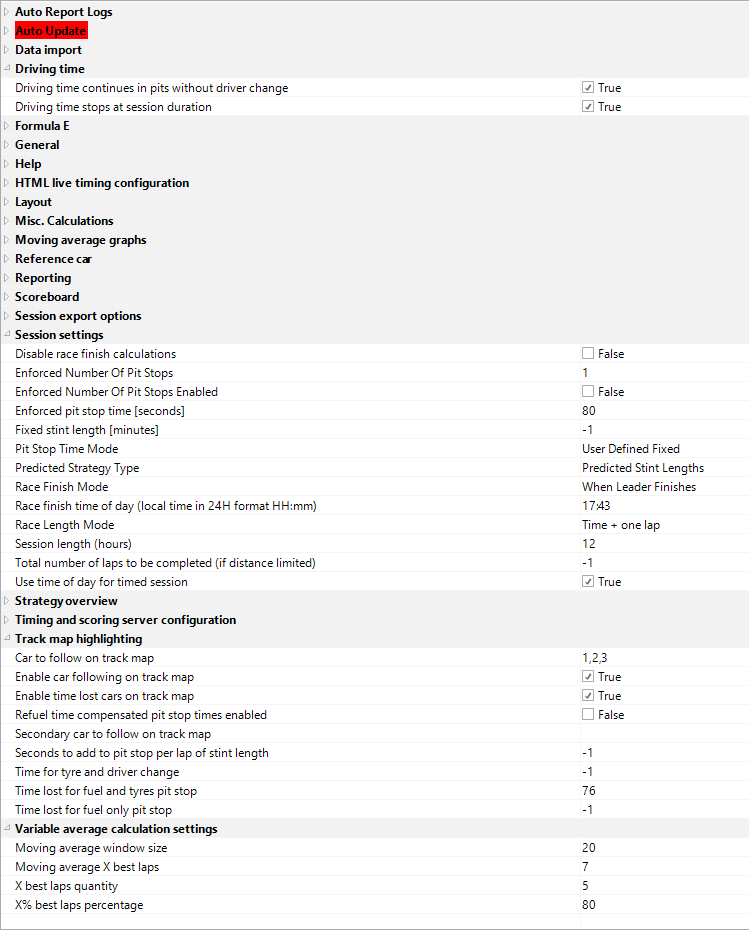
The minimum pit stop time will be confirmed in a Bulletin at the Event. This concerns the following setting : Enforced Pit Stop Time.
Track Map Item for Strategy
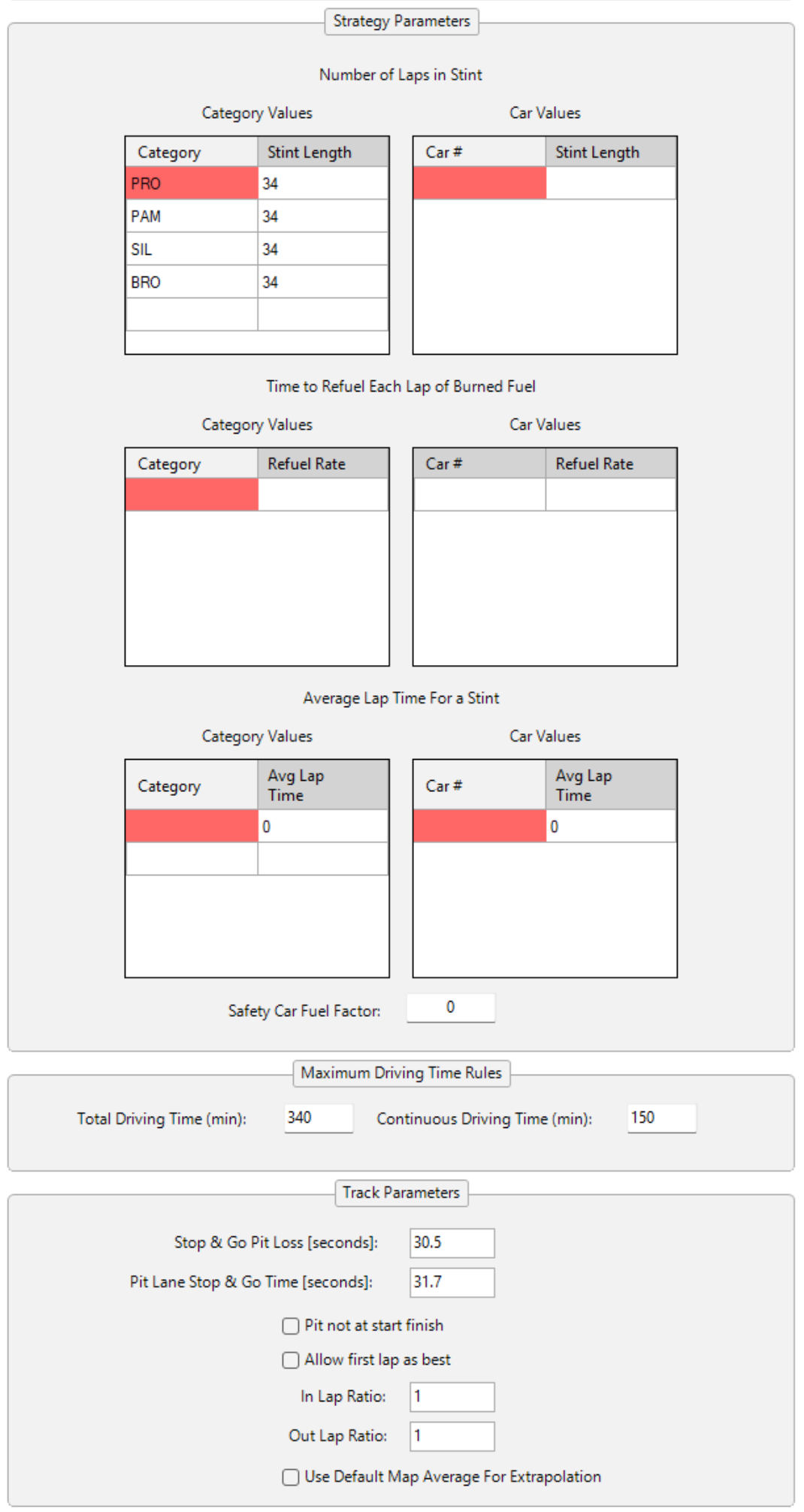
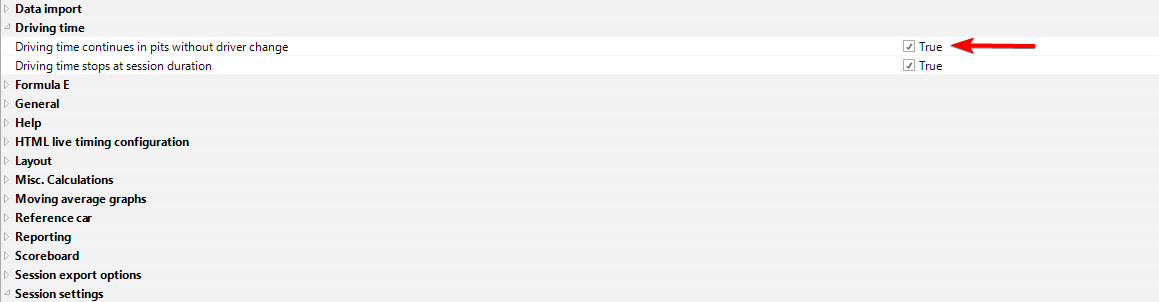
For Bathurst, the rules mentioned that driving time will be calculated excluding the pit lane unless the same driver stays in the car. This is different than most series.To take this into account, it is important to make sure that the backstage option: "Driving time continues in pits without driver change" is set to TRUE.
More on driving time and how to setup max driving time can be found here.
For this race, mainly the maximum time column would be used.
Example:

The race clock will start at the start of the formation lap.
Lap 1 will be the first lap after the green flag (after the formation lap).
Timing will starts at the completion of S1 in Lap 1. Nothing will be populated during the formation lap except the clock time.
24 Hours of Spa - Prologue
Championship configuration
| Protocol | Swiss Timing FTP |
| Host | 52.233.255.131 |
| Port | 22 |
| Username | racing-sro |
| Password | _GrPRo-0S!9L |
FTP Directory
/SRO/Crowdstrike 24 Hours of Spa - Prologue/GTWorldChEU pwrd by AWS Endurance Cup/<NEWEST> (Updated on 2026-05-19, please check it with Filezilla) |
Speed Trap Lines
F,I1,I2,S1
F is the speed on Finish Line, I1 the speed at the end of sector 1, I2 the speed at the end of sector 2 and S1 is a speed trap in pits, 340m after FL.
24 Hours of Spa
Information in this section is generally applicable to the settings that should be considered for running in the GTWCE, but there is a particular focus on being prepared for the Spa 24H event.
Detailed information for how to connect to the live data feed and import post-session data can be found in the Swiss Timing section.
Details on using the Drive Time plugin created for HH Timing can be found in the Drive Time Plugin section. It is important to make sure that the latest version is downloaded and stored in the correct directory of the computer.
Local FTP Configuration
| Protocol | Swiss Timing FTP |
| Host | xml-motorsport.sportresult.com |
| Port | 21 |
| Username | racing-sro |
| Password | _GrPRo-0S!9L |
Cloud FTP Configuration
An internet-based feed is also available. The delay on this one is more important than on the local feed.
| Protocol | Swiss Timing FTP |
| Host | 52.233.255.131 |
| Port | 22 |
| Username | racing-sro |
| Password | _GrPRo-0S!9L |
Please note the select FTP Directory feature is only available with the local connection.
FTP Directory
/XML_SRO/Crowdstrike 24 Hours of Spa Round 4/GTWorldChEU pwrd by AWS Endurance Cup/<NEWEST>
Kafka Configuration
A Kafka feed is also available, either locally on the timing network or remotely via the cloud host. See the Swiss Timing Kafka section for general setup. The connection details for GTWC Europe are:
Local (timing network at the circuit):
| Protocol | Swiss Timing Kafka |
| Host | 10.2.40.3 |
| Port | 9093 |
Cloud:
| Protocol | Swiss Timing Kafka |
| Host | evhns-prod-realtime-msp-westeurope.servicebus.windows.net |
| Port | 9093 |
By default, a championship called "Swiss Timing Kafka" is created in all new projects. Double click on it to open it in your workbook and verify the settings above.
Speed Trap Lines
F,I1,I2,PI,S2,PO
F is the speed on Finish Line, I1 the speed at the end of sector 1, I2 the speed at the end of sector 2, PI is the speed trap at Pit Entry, S2 is a speed trap in pits, 340m after FL, PO is the speed trap at Pit Exit
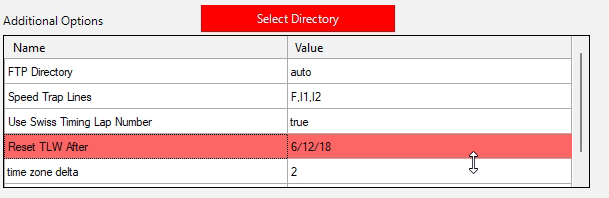
Reset tlw after
To allow automatic resetting of Track Limit Warnings every 6 hours, a new option must be introduced: "Reset TLW After". It needs to be defined like that:
| Reset TLW After | 6/12/18 |
|---|
Suggested Project Settings
Session Settings
The Session Settings in the backstage options are some of the most critical to get correct for the race. An example of how the session settings may look for the Spa 24H race is shown below. Note in particular the Fixed Stint Length is set to 61 minutes as per GTWC Europe maximum stint length rules.
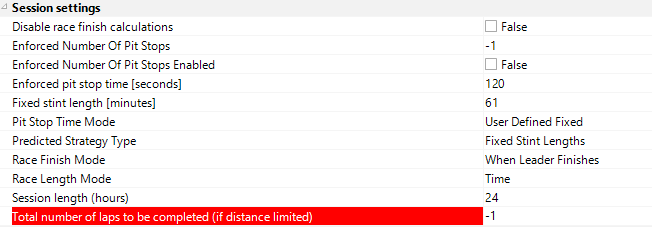
Backstage settings can now be exported, which is useful to share them with other teammates.
Fixed Stint Length Mode
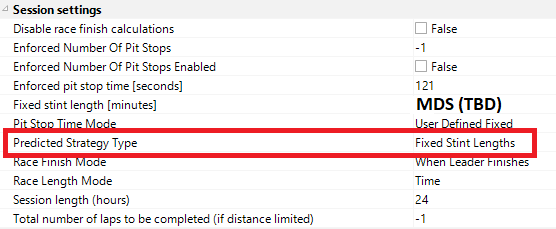
Our Race Finish Calculation uses Predicted or Fixed Stint Lenght depending on the selected option. Before it was done In the Strategy Overview and Projected Gap Graph. Now this needs to be done in the backstage options. For all GTWC races, the Fixed Stint Length option should be used. This means the maximum driving time will be used to determine the maximum stint length for each car individually.
Track Item
We suggest making a new Track Item for each event which allows keeping some of the relevant strategy settings specific to each event. In the Strategy Parameters section, the only relevant setting when using the Fixed Stint Length mode are the Average Lap Time For a Stint table and the in/out Lap Ratio. The Average Lap Time allows controlling the average lap time used for the forward predictions. If nothing is specified for a given car then the Assumed Pace is used for the future stints. Regarding the In Lap Ratio and the Out Lap Ratio, our recommendation are:
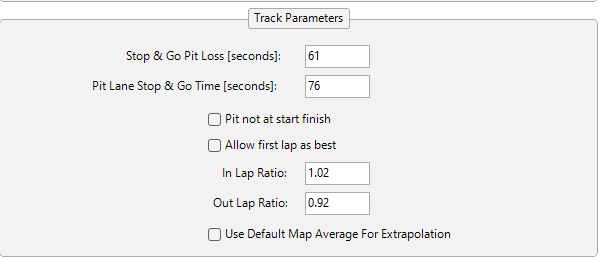
Stop & Go Pit Loss isn't use with GTWC rules and the Pit Lane Stop & Go Time can be set to use the stationnary time in the Pit Stop Scoreboard ( Corrected For Pitlane Time).
If the Drive Time Plugin is used, the Maximum Driving Time inputs should be set as per the relevant regulations.
Track Map Highlighting
To highlight cars of interest on the track map and set time lost ghost cars for pit stops, details are given in the Track Map Highlighting section.
Detailed information for options available to configure the Main Track map are given in the Track Maps section. Particularly at Spa, with so many cars on track, the Class Highlighting options may be of interest.
Possible Configuration
One possible way to setup the track map highlighting to make it useful for both the normal (time-limited) stops and the short stops would be to use the settings below. It is not possible to setup the 4 pitstop options: Short and long refuelling time and with or without pitstop.
- The "F" (Fuel Only) ghost will represent the position the car will come out on track during a Short Stop. This assumes the Short Stop will be fuel only.
- The F&T (Fuel & Tyres) ghost will represent the position the car will come out on track during a normal refuelling time-limited (minimum refuelling time by regulations) stop.
Set in the backstage options Time lost for fuel and tyres pit stop to the time that will be lost (relative to a normal green flag lap) by doing a full-service pitstop (minimum refuelling time + tyre change).
Time lost for fuel only pit stop to the time that will be lost (relative to a normal green flag lap) by doing a short pitstop (maximum refuelling time).
With these settings, both pit ghosts can be used throughout the race for both stop types.
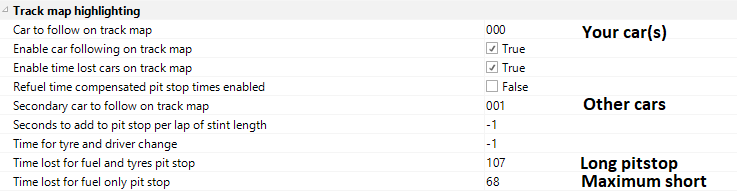
The values entered can be changed by the calculation. Numbers can be changed to have a ghost for other options (Long refuel without tyre change for example).
The custom ghost can also be used to display other offsets from the running car, more details are given here.
Technical PitStop
It is possible to add values for the Technical Pitstop in the track item. It will set the value for Technical Pitstop to true in the main scoreboard if one pitstop matches these values.

Drive Time Plugin Settings
If the Drive Time Plugin is used to monitor the driving time, it is important to ensure the settings which are used for both the Stint Summary and Pit Stopwatch are correct. The Drive Time Plugin has proved to be a useful tool however, we stress that users practice with it using previous replays before using it in a race situation to ensure it is well understood. In case of SC or FCY, the stint time will need to be updated manually.
Miscellaneous Information
Overriding Driver Data
It is possible there can be errors in the driver ID name coming over the timing feed. This can either be an error on the part of the timing provider or an issue with the driver ID switch in the car itself. When the calculation of driver time in a championship like GT World Challenge Europe is so critical this can pose a problem to affected teams.
A function has been added to the software to allow the driver name taken from the timing feed to be overridden inside the software to allow the driver time to be corrected. This feature was specifically added with the Drive Time Time and Strategy Plugin developed for HH Timing.
The driver in a given stint can be edited in the Strategy Overview by right-clicking on the stint in question. This will open a dialogue box with a drop-down to select the correct driver. Once this new driver has been selected the change will propagate throughout all parts of the software. It is worth noting that in some views the new driver name may not be recognized until the next full lap is completed.
Technical Stop Window
There is a useful feature for visualizing the mandatory technical stop in the Strategy Overview by using the Annotations tool.
Driving Time with Drive-Throughs
By the sporting regulations, the driving time for each driver is only accumulating while the car is on track, the time in pit lane does not count towards drive time. Each time a car enters the pit lane, the stint time is reset to zero. The exception to this is if a car enters the pit lane for a drive-through, in this case, the stint time is not reset and time spent traversing the pit lane, in this case, does count towards the driving time of that stint. There are three situations where this may occur:
- Car completing a drive-through penalty
- Car(s) traversing pit lane to avoid an accident on-track
- In case of red flag if car are going into the pit during the race suspension
If this situation occurs, this needs to be accounted for by the person responsible for managing driving time. In this case, the Start and End times for each relevant stint should be referred to in the Car Scoreboard for the car of interest to manually determine the remaining stint time.
1000 Km of Suzuka
Information in this section are a focus on being prepared for the 1000 Km of Suzuka event.
Details on using the Drive Time plugin created for HH Timing can be found in the Drive Time Plugin section. It is important to make sure that the latest version is downloaded and stored in the correct directory of the computer.
Timing provider
Timing at Suzuka will be provided by TSL Timing.
Prior to event, it will be necessary to contact TSL to get an API Key and a Shared Secret Key from them. Those keys for this event are different than the one used in other IGTC or GTWC Asia races.
Championship configuration

| Protocol | TSL Timing |
| Host | asia-gt-feed.tsl-timing.com |
| Port | 5208 |
| API Key | YOUR API KEY |
| Shared Secret | YOUR SHARED SECRET |
Track Layout
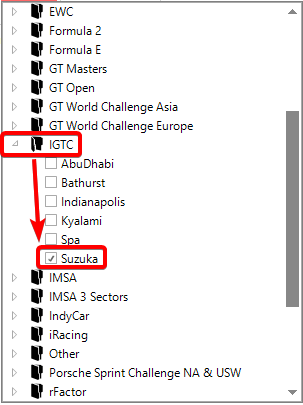
The track layout used for this race can be found in the folder IGTC under "Suzuka":
Backstage Options
As the driving time is calculated excluding the pit stops, the "Driving time continues in pits without driver change" option must be unchecked. The "Driving time stops at session duration" option must be checked, so that the driving time stops at the end of the scheduled race duration:

Suggested Project Settings
Session Settings
The Session Settings in the backstage options are some of the most critical to get correct for the race. An example of how the session settings may look for the 1000 km of Suzuka race is shown below:
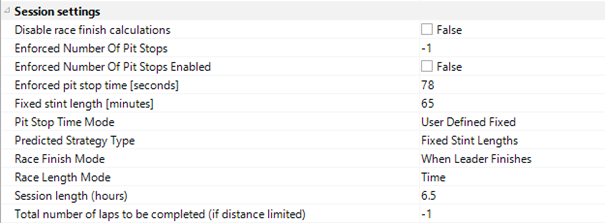
The Max Stint time can be extended to 70 minutes if the Safety Car is on track or a Full Course Yellow period is in operation at the end of that stint (EDS). In this situation, the "EDS" option can be ticked in the Drive Time Plugin:
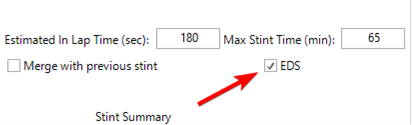
This will not have any impact on the total driving time.
Fixed Stint Length Mode
Our Race Finish Calculation uses Predicted or Fixed Stint Lenght depending on the selected option. Before it was done In the Strategy Overview and Projected Gap Graph. Now this needs to be done in the backstage options. For this race, the Fixed Stint Length option should be used. This means the maximum driving time will be used to determine the maximum stint length for each car individually.
Track Item
In the Strategy Parameters section, the only relevant setting when using the Fixed Stint Length mode are the Average Lap Time For a Stint table and the in/out Lap Ratio. The Average Lap Time allows controlling the average lap time used for the forward predictions. If nothing is specified for a given car then the Assumed Pace is used for the future stints.
If the Drive Time Plugin is used, the Maximum Driving Time input should be 195 minutes as per the 1000km of Suzuka sporting regulation :

The total maximum driving time can be extended to 200 minutes if the Safety Car is on track or a Full Course Yellow period is in operation at the end of any driver’s final stint only.
Track Map Highlighting
To highlight cars of interest on the track map and set time lost ghost cars for pit stops, details are given in the Track Map Highlighting section.
Detailed information for options available to configure the Main Track map are given in the Track Maps section.
Possible Configuration
One possible way to setup the track map highlighting to make it useful for both the normal (time-limited) stops and the short stops would be to use the settings below. It will not be possible to setup the 4 pitstop options: Short and long refuelling time and with or without pitstop.
- The "F" (Fuel Only) ghost will represent the position the care will come out on track during a Short Stop. This assumes the Short Stop will be fuel only.
- The F&T (Fuel & Tyres) ghost will represent the position the car will come out on track during a normal refuelling time-limited (minimum refuelling time by regulations) stop.
Set in the backstage options Time lost for fuel and tyres pit stop to the time that will be lost (relative to a normal green flag lap) by doing a full-service pitstop (minimum refuelling time + tyre change).
Time lost for fuel only pit stop to the time that will be lost (relative to a normal green flag lap) by doing a short pitstop (maximum refuelling time).
With these settings, both pit ghosts can be used throughout the race for both stop types.
The values entered can be changed by the calculation. Numbers can be changed to have a ghost for other options (Long refuel without tyre change for example).
The custom ghost can also be used to display other offsets from the running car, more details are given here.
Drive Time Plugin Settings
If the Drive Time Plugin is used to monitor the driving time, it is important to ensure that the settings which are used for both the Stint Summary and Pit Stopwatch are correct. The Drive Time Plugin has proved to be a useful tool however, we stress that users practice with it using previous replays before using it in a race situation to ensure it is well understood.
Miscellaneous Information
Overriding Driver Data
It is possible there can be errors in the driver ID name coming over the timing feed. This can either be an error on the part of the timing provider or an issue with the driver ID switch in the car itself. When the calculation of driver time in a championship like Intercontinental GT Challenge is so critical, this can pose a problem to affected teams.
A function has been added to the software to allow the driver name taken from the timing feed to be overridden inside the software to allow the driver time to be corrected. This feature was specifically added with the Drive Time Time and Strategy Plugin developed for HH Timing.
The driver in a given stint can be edited in the Strategy Overview by right-clicking on the stint in question. This will open a dialogue box with a drop-down to select the correct driver. Once this new driver has been selected the change will propagate throughout all parts of the software. It is worth noting that in some views the new driver name may not be recognized until the next full lap is completed.
Driving Time with Drive -Throughs
By the sporting regulations, the driving time for each driver is only accumulating while the car is on track, the time in pit lane does not count towards drive time. Each time a car enters the pit lane, the stint time is reset to zero. The exception to this is if a car enters the pit lane for a drive-through, in this case, the stint time is not reset and time spent traversing the pit lane, in this case, does count towards the driving time of that stint. There are three situations where this may occur:
- Car completing a drive-through penalty
- Car(s) traversing pit lane to avoid an accident on-track
- In case of red flag if car are going into the pit during the race suspension
This is what the "Merge with previous stint" checkbox of the Stint Summary is for. When it is ticked, the current stint is merged with the previous one, "Stint Merged" is displayed and the stint time keeps running from the last real pit stop. The box must be unticked again at the next pit stop.
This option only affects the Stint Summary of the Drive Time Plugin. The driving time shown in the Car Scoreboard and in the Driver Scoreboard will still be incorrect in these situations, as the stint is reset when the car crosses the pit entry line. This needs to be accounted for by the person responsible for managing driving time: the Start and End times for each relevant stint should be referred in the Car Scoreboard for the car of interest to manually determine the remaining stint time.
Indianapolis 8 Hours
Details on using the Drive Time plugin created for HH Timing can be found in the Drive Time Plugin section. It is important to make sure that the latest version is downloaded and stored in the correct directory of the computer.
Timing provider
Timing at Indianapolis will be provided by Al Kamel North America.
Prior to event, it will be necessary to purchase a protocol access from the Al Kamel North America store. More details can be found under the SRO America help section.
Championship configuration
The championship configuration can be downloaded here. The username and password provided by Al Kamel will need to be entered when importing it in HH Timing.
Track Layout
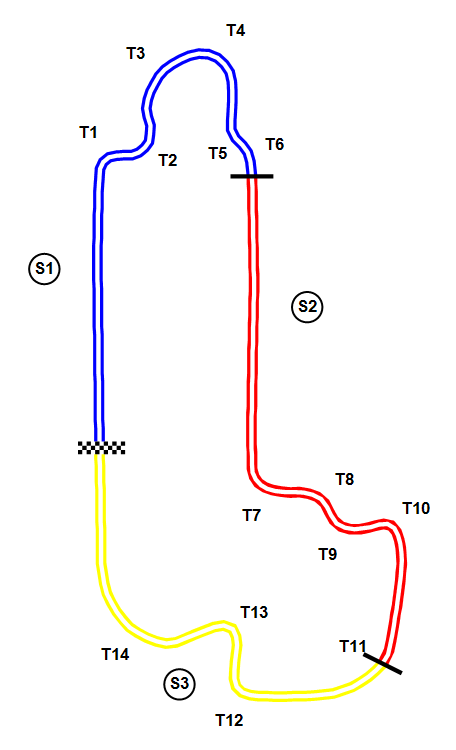
An Alternate Track Map is used for the Practice and Qualifying sessions. Both the Alternate and Regular Indianapolis track maps are listed in HH Timing both under the IGTC folder and the SRO America folder:

Backstage Options
As the driving time is calculated excluding the pit stops, the "Driving time continues in pits without driver change" option must be unchecked. The "Driving time stops at session duration" option must be checked, so that the driving time stops at the end of the scheduled race duration:
Suggested Project Settings
Session Settings
The Session Settings in the backstage options are some of the most critical to get correct for the race. The minimum pit stop time for stops including refuelling is TBA for now and will be confirmed by a Stewards' bulletin.
The Max Stint time can be extended to 70 minutes if the Safety Car is on track or a Full Course Yellow period is in operation at the end of that stint (EDS). In this situation, the "EDS" option can be ticked in the Drive Time Plugin:
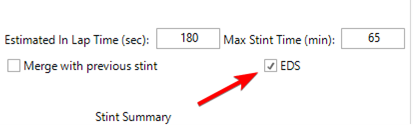
This will not have any impact on the total driving time.
Fixed Stint Length Mode
Our Race Finish Calculation uses Predicted or Fixed Stint Lenght depending on the selected option. This needs to be done in the backstage options. For this race, the Fixed Stint Length option should be used. This means the maximum driving time will be used to determine the maximum stint length for each car individually.
Track Item
In the Strategy Parameters section, the only relevant setting when using the Fixed Stint Length mode are the Average Lap Time For a Stint table and the in/out Lap Ratio. The Average Lap Time allows controlling the average lap time used for the forward predictions. If nothing is specified for a given car then the Assumed Pace is used for the future stints.
If the Drive Time Plugin is used, the Maximum Driving Time input should be 195 minutes as per the Indianapolis 8 Hour sporting regulation :
The total maximum driving time can be extended to 200 minutes if the Safety Car is on track or a Full Course Yellow period is in operation at the end of any driver’s third and/or final stint only.
Track Map Highlighting
To highlight cars of interest on the track map and set time lost ghost cars for pit stops, details are given in the Track Map Highlighting section.
Detailed information for options available to configure the Main Track map are given in the Track Maps section.
Possible Configuration
One possible way to setup the track map highlighting to make it useful for both the refuelling (time-limited) stops and the stops without refuelling would be to use the settings below.
- The "F&T" (Fuel & Tyres) ghost will represent the position the car will come out on track during a normal refuelling time-limited (minimum refuelling time by regulations) stop.
- The "T" (Tyres only) ghost will represent the position the car will come out on track during a stop without refuelling, which has no minimum duration.
Set in the backstage options Time lost for fuel and tyres pit stop to the time that will be lost (relative to a normal green flag lap) by doing a full-service pitstop (minimum refuelling time + tyre change).
Time lost for tyres only pit stop to the time that will be lost (relative to a normal green flag lap) by doing a stop without refuelling.
With these settings, both pit ghosts can be used throughout the race for both stop types.
The values entered can be changed by the calculation. Numbers can be changed to have a ghost for other options.
The custom ghost can also be used to display other offsets from the running car, more details are given here.
Drive Time Plugin Settings
If the Drive Time Plugin is used to monitor the driving time, it is important to ensure that the settings which are used for both the Stint Summary and Pit Stopwatch are correct. The Drive Time Plugin has proved to be a useful tool however, we stress that users practice with it using previous replays before using it in a race situation to ensure it is well understood.
Miscellaneous Information
Overriding Driver Data
It is possible there can be errors in the driver ID name coming over the timing feed. This can either be an error on the part of the timing provider or an issue with the driver ID switch in the car itself. When the calculation of driver time in a championship like Intercontinental GT Challenge is so critical, this can pose a problem to affected teams.
A function has been added to the software to allow the driver name taken from the timing feed to be overridden inside the software to allow the driver time to be corrected. This feature was specifically added with the Drive Time Time and Strategy Plugin developed for HH Timing.
The driver in a given stint can be edited in the Strategy Overview by right-clicking on the stint in question. This will open a dialogue box with a drop-down to select the correct driver. Once this new driver has been selected the change will propagate throughout all parts of the software. It is worth noting that in some views the new driver name may not be recognized until the next full lap is completed.
Driving Time with Drive -Throughs
By the sporting regulations, the driving time for each driver is only accumulating while the car is on track, the time in pit lane does not count towards drive time. Each time a car stops in its pit box, the stint time is reset to zero. The exception to this is if a car enters the pit lane without stopping, in this case, the stint time is not reset and time spent traversing the pit lane does count towards the driving time of that stint. There are three situations where this may occur:
- Car completing a drive-through or stop-go penalty
- Car(s) led through the pit lane by the Safety Car
- Car driving through the pit lane without stopping for a pit stop
This is what the "Merge with previous stint" checkbox of the Stint Summary is for. When it is ticked, the current stint is merged with the previous one, "Stint Merged" is displayed and the stint time keeps running from the last real pit stop. The box must be unticked again at the next pit stop.
This option only affects the Stint Summary of the Drive Time Plugin. The driving time shown in the Car Scoreboard and in the Driver Scoreboard will still be incorrect in these situations, as the stint is reset when the car crosses the pit entry line. This needs to be accounted for by the person responsible for managing driving time: the Start and End times for each relevant stint should be referred in the Car Scoreboard for the car of interest to manually determine the remaining stint time.
Kyalami 9 Hours
Timing Provider
The timekeeping is provided by TSL Timing who will provide a timing feed connection accessible with an internet connection.
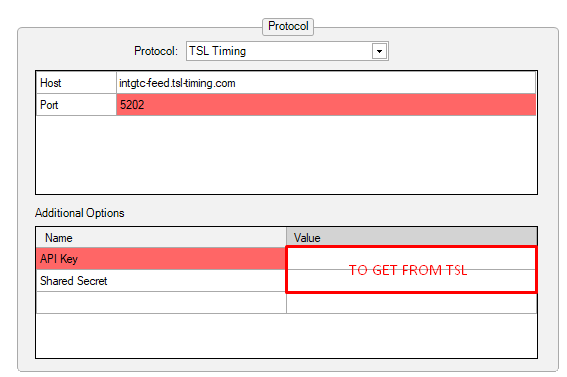
Prior to event, it will be necessary to contact TSL to get an API Key and a Shared Secret Key from them. Here is their contact : stephen.taylor@tsl-timing.com.
Past year replays
| 2019 Replay | Race replay from 2023 can be downloaded here |
Championship protocol
| Host | intgtc-feed.tsl-timing.com |
| Port | 5202 |
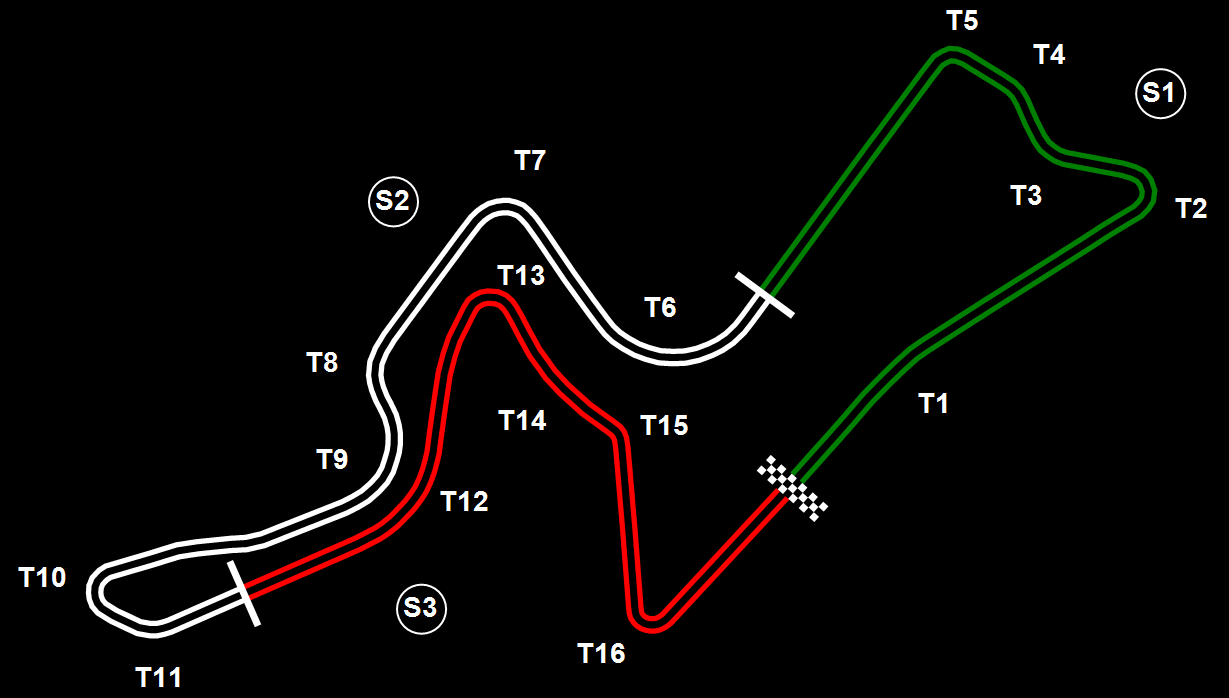
Track Map
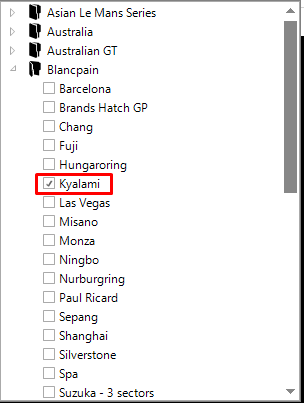
The Kyalami track map is listed in HH Timing under the folder Blancpain.
Drive Time and Pit Stops
Details on using the drive time plugin created for HH Timing can be found in the drive time plugin section. It is important to ensure that the latest version is downloaded and stored in the correct directory of the computer.
Track Map Item for Strategy
Maximum Driving and maximum continuous driving time can be entered in the track item. These inputs must be filled to get correct information in the Blancpain plugin.

Backstage Options
As the driving time is calculated excluding pit stops, the "Driving time continues in pits without driver change" option must be unchecked in the backlog options:

Fixed Stint Length Mode
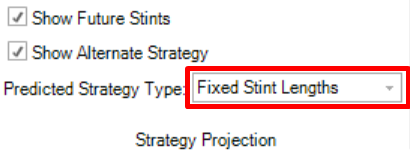
In the Strategy Overview and Projected Gap Graph there are options in the ribbon bar control for each to use the Predicted or Fixed Stint lengths for the future strategy projections. For all Blancpain races, the Fixed Stint Length option should be used. This means the maximum driving time will be used to determine the maximum stint length for each car individually.
Track Item
We suggest making a new Track Item for each event which allows keeping some of the relevant strategy settings specific to each event. In the Strategy Parameters section, the only relevant setting when using the Fixed Stint Length mode is the Average Lap Time For a Stint table. This allows controlling the average lap time used for the forward predictions. If nothing is specified for a given car then the Assumed Pace is used for the future stints.
If the Blancpain Plugin is used, the Maximum Driving Time inputs should be set as per the relevant regulations.
Gulf 12 Hours
Timing Provider
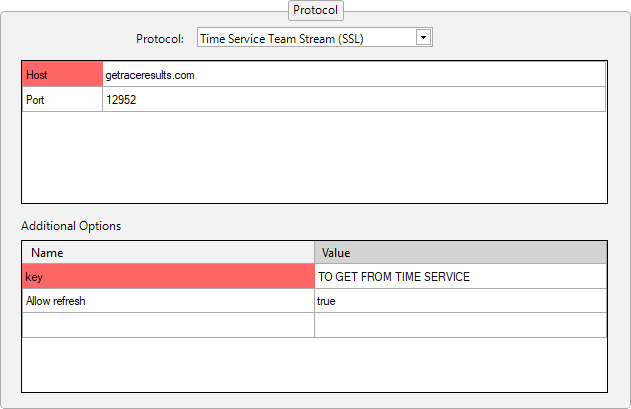
The timekeeping is provided by Time Service who will provide a timing feed connection accessible with an internet connection.
Prior to event, it will be necessary to contact Marcel from Time Service to get an API Key and a Shared Secret Key from them: marcel@timeservice.nl.
Past year replays
| 2023 Replay | Race replay from 2023 can be downloaded with the Remote Replay Database. |
| 2021 Replay | Race replay from 2021 (in Bahrain) can be downloaded here |
Championship protocol
| Host | getraceresults.com |
| Port | 12952 |
Track Map
The Abu Dhabi track map is listed in HH Timing under the folder IGTC.
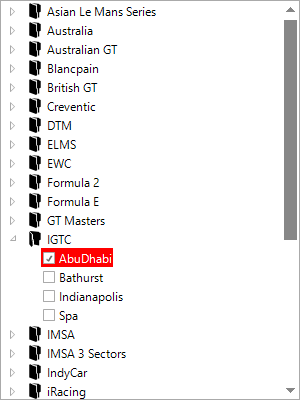
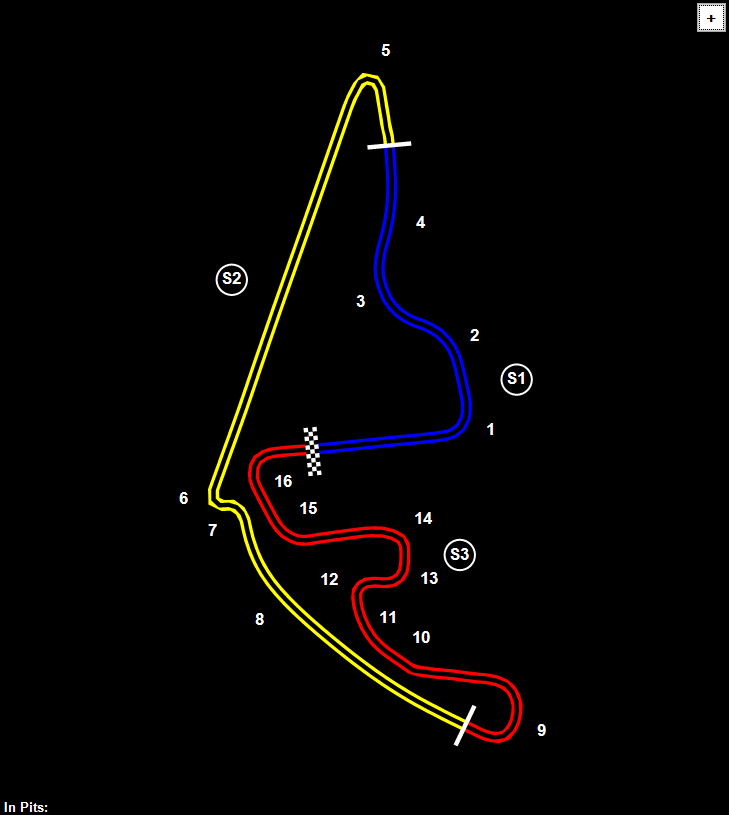
General information on using the Main Track Map can be found here. Information on setting up the car following and "track map ghosts" can be found here.
Backstage Options
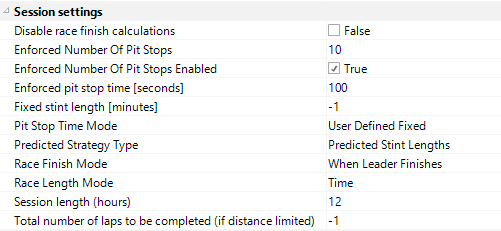
As the driving time is calculated excluding pit stops, the "Driving time continues in pits without driver change" option must be unchecked in the backlog options:

Below are some suggested Session settings:
Drive Time and Pit Stops
Details on using the drive time plugin created for HH Timing can be found in the drive time plugin section. It is important to ensure to have the latest version downloaded and stored in the correct directory of the computer.
Track Map Item for Strategy
We suggest making a new Track Item for each event which allows keeping some of the relevant strategy settings specific to each event. In the Strategy Parameters section, the only relevant setting when using the Fixed Stint Length mode is the Average Lap Time For a Stint table. This allows controlling the average lap time used for the forward predictions. If nothing is specified for a given car then the Assumed Pace is used for the future stints.


If the Drive Time Plugin is used, the Maximum Driving Time inputs should be set as per the relevant regulations.